What actually gets compressed
Good infographics are built from a small number of load-bearing elements: one headline claim, two or three numbers that support it, and a shape that shows the relation between them. Everything else is caption.
So the input is read for those elements first. Numbers and their units, the comparison they make, and the sentence that states what it all means. If a section has no numbers, the layout becomes sequence or comparison instead of statistics — the wrong layout for the material is how infographics turn into decoration.
Templates, and why the choice is visible
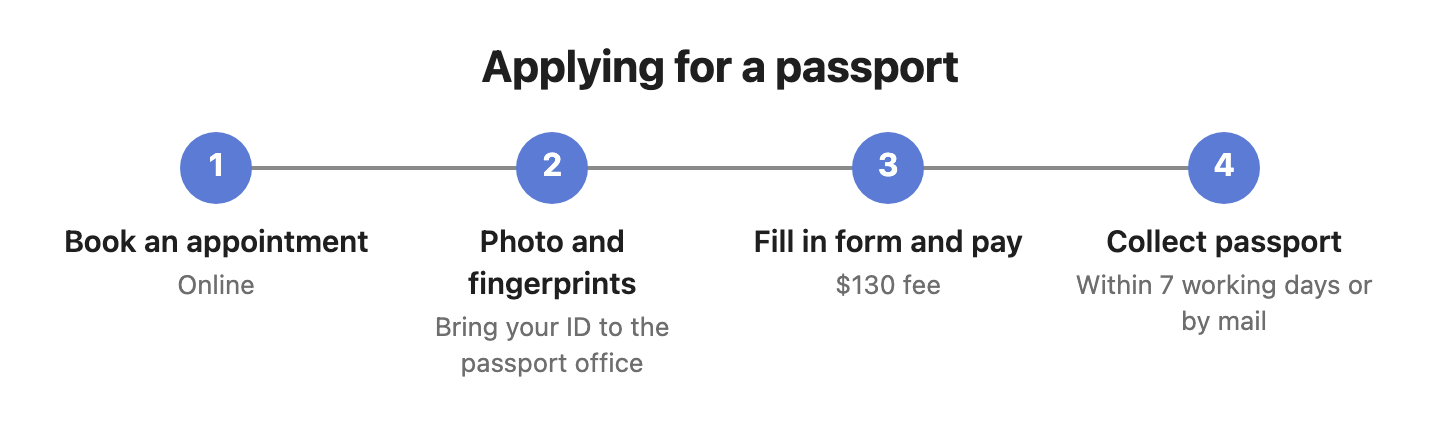
There are a fixed set of layouts — a key figure, a comparison of two, a ranked list, a sequence of steps, a parts-of-a-whole split. Auto picks one and names it, so a mismatch is obvious in a line instead of being absorbed into the design.
- One number worth remembering → key-figure layout.
- Before and after, or us and them → comparison.
- A ranked or ordered set → list with scale.
- A process → steps, in order, with the decision point marked.
Where it goes
Export PNG for chat and slides, PDF for print, or keep it in the document as a page. The source stays in the Markdown, so next quarter’s version is an edit to the numbers rather than a rebuild.
Questions this page gets
Can it invent a headline?
It will compress your text into a claim, and the claim links back to the sentence it came from. If the text has no single claim, you get the layout that fits what is actually there — a comparison or a list — rather than a slogan.
What sizes does the export come in?
PNG for screens and chat, PDF for print. Both are rendered from the same layout, so nothing reflows between them.
Is this the same as the image-card tool?
No. Cards paginate a long text into a sequence of images; an infographic compresses one section into a single page. If your source is a 2,000-word article, you want cards.
Where to go next
- The built-in pen — turn a passage into a chart or infographic without leaving the paragraph.
- Writing with AI — where these visuals sit in a real writing session.
- The editor itself — every block type, the Markdown each one saves, and what survives export.
- Working on a Mac? The MindMax desktop app opens the same documents from Finder.